
Aliens Fireteam Elite 2 Recommended Settings
Apply these Aliens Fireteam Elite 2 recommended settings as a sourced PC starting point for clarity and frame pacing; hardware results remain unverified.
These recommended settings are a sourced PC starting point, not a guaranteed performance profile. Destructoid’s launch guide recommends Custom quality, medium textures, low shadows, effects, and foliage, 4x anti-aliasing, medium view distance and post-processing, ambient occlusion off, screen-space reflections on, chromatic aberration and motion blur off, FSR Performance or Balanced, and a 60 or 90 FPS cap. Your actual FPS, image quality, and frame pacing are unverified until tested on your hardware.
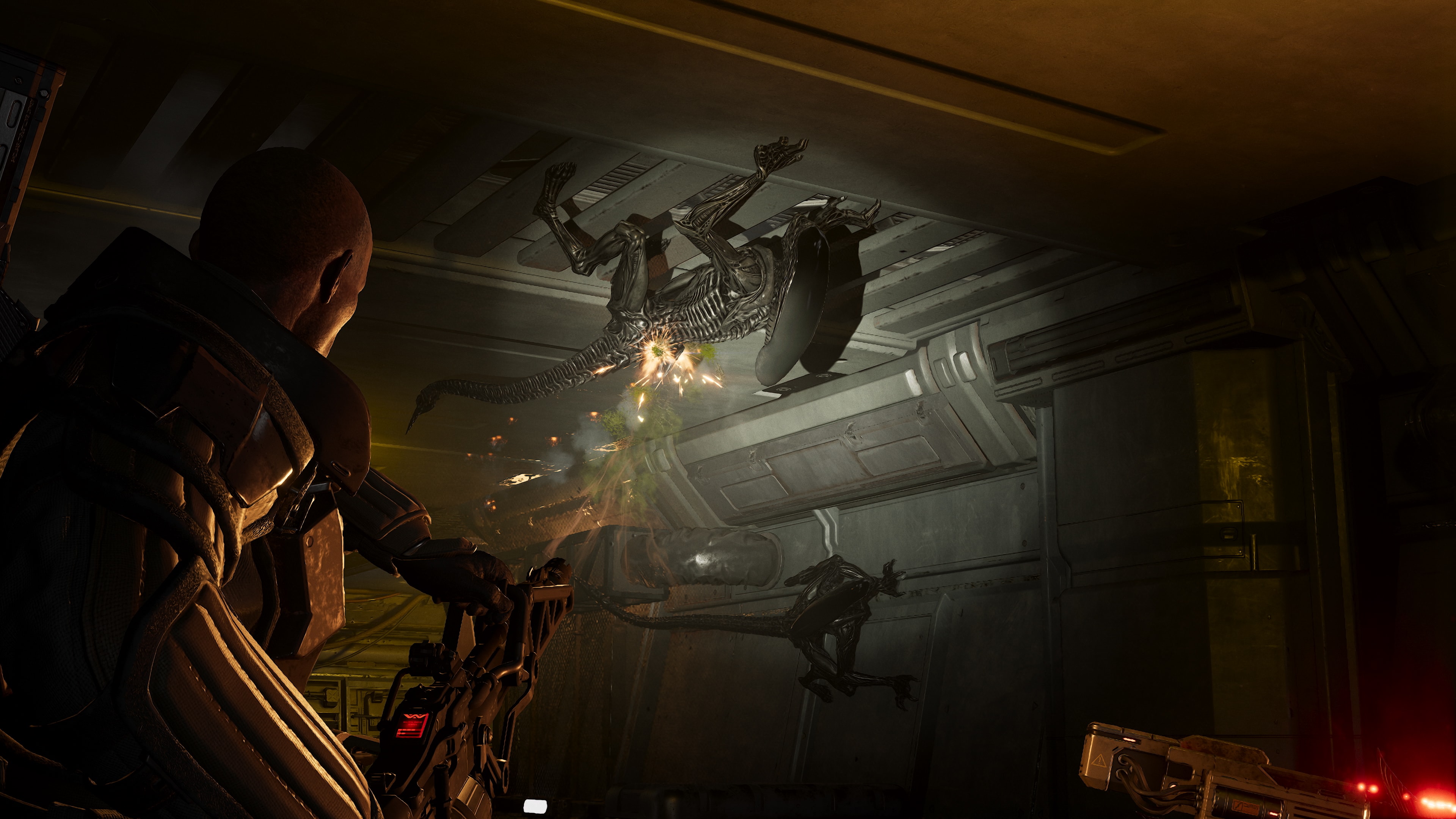
Recommended starting profile
Set the overall quality to Custom so each expensive option can be adjusted independently. Start with medium textures, low shadows, low effects, and low foliage, then use 4x anti-aliasing with medium view distance and post-processing. Turn ambient occlusion off, keep screen-space reflections on, and disable chromatic aberration and motion blur according to the collected recommendation.
This profile is not an official preset and was not benchmarked across every CPU, GPU, or resolution in the source. It is useful because it exposes the tradeoffs instead of hiding them behind one quality label. If a setting name or option is different in the released build, record the exact UI label before updating the guide.
Upscaling and frame cap
The collected recommendation uses FSR Performance or Balanced and suggests a 60 or 90 FPS lock. Choose between those modes by checking readability, aliasing, and frame-time stability during a large combat wave, not only in a quiet room. A cap can make controls feel more consistent when the system cannot hold a higher target.
Do not promise that Performance is always better than Balanced. Resolution, display size, GPU headroom, and personal tolerance for reconstruction artifacts change the result. Record resolution, FSR mode, cap, VSync state, and mission when publishing a measured comparison.
VSync and latency
The collected settings article recommends VSync on alongside a frame cap. That can reduce visible tearing, but the right choice depends on the display and the player’s latency preference. The source does not provide a measured input-lag comparison, so treat latency claims as unverified.
Test the same movement, aiming, and firing sequence with VSync on and off while watching frame pacing. Keep the cap consistent between tests. If a variable-refresh display is involved, note the monitor behavior separately from the game’s setting.
Image clarity priorities
Textures, anti-aliasing, view distance, and post-processing affect readability in different ways. The sourced profile keeps textures and view distance at medium while lowering shadows, effects, and foliage, which is a sensible starting balance for a co-op shooter. It does not prove that these settings are optimal for identifying weak points, hazards, or teammates.
Disable motion blur and chromatic aberration if they reduce clarity or cause discomfort. Keep screen-space reflections on only if the visual gain is worth the performance cost on your machine. Any claim about a specific percentage FPS gain is unverified without a controlled benchmark.
How to benchmark your own system
Use a repeatable mission segment with the same resolution, class, weapon effects, enemy density, and camera behavior. Measure an average and a low frame-time result during both traversal and combat, then repeat after changing one setting. A Horde wave is useful for stress testing, but the collected sources do not supply an official benchmark route.
Record GPU model, CPU model, memory, driver, operating-system version, game version, display resolution, and upscaler mode. This turns a personal result into evidence another player can reproduce. If a result conflicts with the sourced starting point, publish the conditions rather than silently replacing the recommendation.
Laptop and Steam Deck limits
These settings were collected as a general PC recommendation, not a laptop-specific or Steam Deck profile. SteamDB shows a touchscreen configuration flag but does not confirm Steam Deck Verified status or performance. Battery life, fan noise, thermal throttling, and controller behavior therefore remain unverified.
For a laptop, test plugged in and on the intended power mode, then check sustained performance after a full mission. For Steam Deck, record the model and operating-system version. Keep those results on their own platform page instead of presenting them as universal PC evidence.
The setting values come from Destructoid’s graphics guide. Official game context is available on the homepage; Steam Deck evidence is tracked on SteamDB. Hardware-specific FPS, latency, and battery results remain unverified.
Related Articles
start-here
Aliens Fireteam Elite 2 Best Laptops Guide
Choose among the best laptops for Aliens Fireteam Elite 2 using current storefront requirements and test rules; performance and thermals remain unverified.
start-here
Aliens Fireteam Elite 2 System Requirements and Platforms
Aliens Fireteam Elite 2 system requirements, PC specs, PS5 and Xbox support, crossplay, Game Pass requirements, and Switch 2 release date guide.
start-here
Aliens Fireteam Elite 2 Steam Deck Guide
Check the current Aliens Fireteam Elite 2 Steam Deck evidence, including SteamDB flags and compatibility clues; performance remains unverified.
Was this helpful?
Thanks for the feedback!